


Merged Presentations
If your medical and ancillary teams each build their own presentations for the same client, you can combine them into a single, unified presentation. Instead of rebuilding or copying content across files, you merge benefit types from one pr
If your medical and ancillary teams each build their own presentations for the same client, you can combine them into a single, unified presentation. Instead of rebuilding or copying content across files, you merge benefit types from one presentation into another — and the result is one complete, client-ready deliverable.
How to Merge Presentations
The merge action lives in the three-dot menu next to any presentation on the employer profile.
- Open the employer profile and locate the presentation you want to merge from.
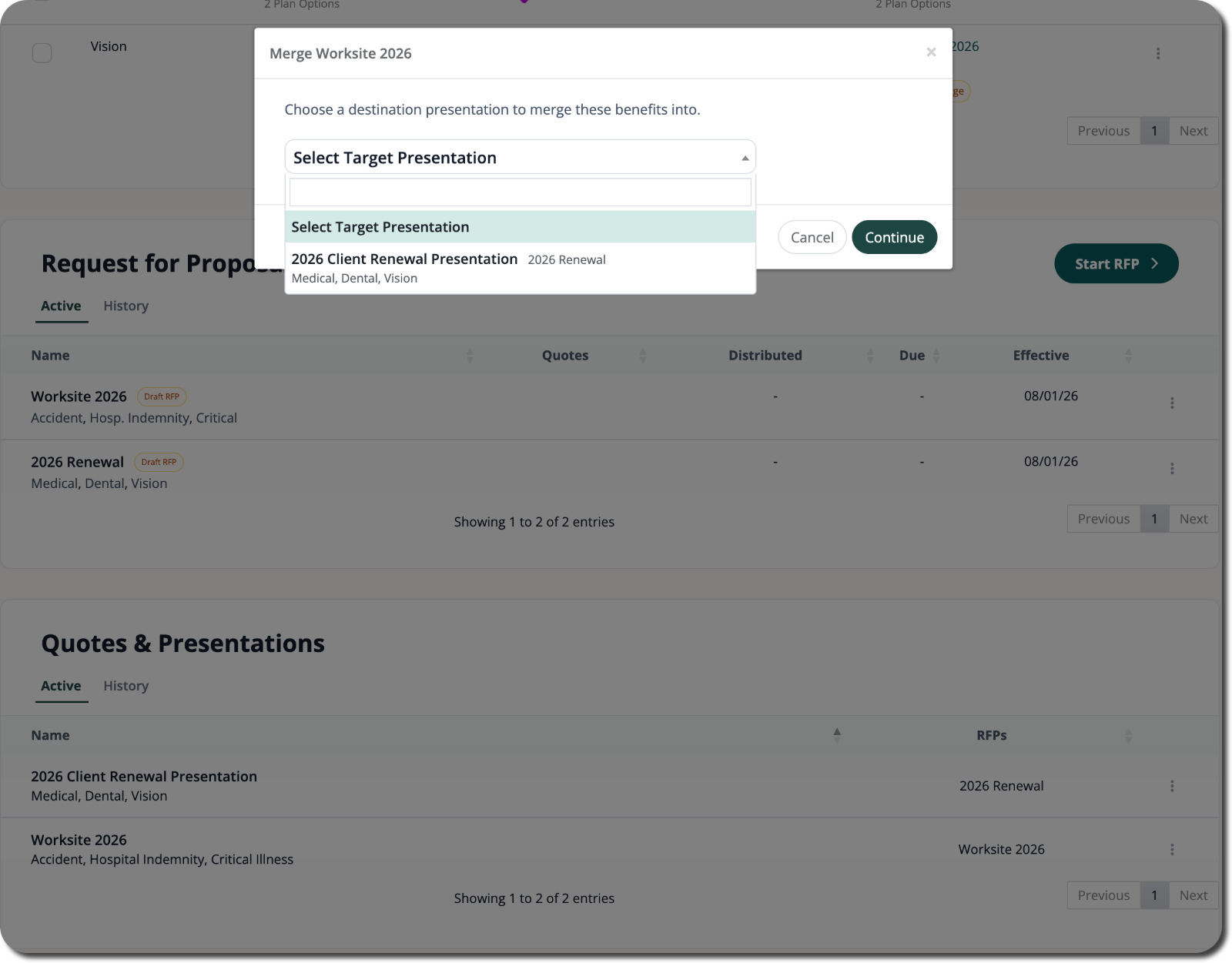
- Click the three-dot menu next to that presentation and select Merge Into…
- Choose the destination presentation — this is where the benefit types will land.
- Select which benefit types to bring over, then confirm the merge.
The selected benefit lines move into the destination presentation. From there, everything — Medical, Dental, Vision, Accident, or any other included line — is in one place and ready to present.
A Few Rules to Know
- You can't merge two presentations that share the same benefit type — each benefit type can only exist in one presentation.
- For Small Group Community Rated medical, the medical presentation must be the destination, not the source.
- You can rename any presentation directly from the table without opening it.
Common Questions
- What if both presentations already have Medical? You can't merge them — presentations that share a benefit type can't be combined. One of them needs to have that benefit type removed first, or you merge a different line instead.
- Does merging delete the source presentation? The benefit types you selected move into the destination. Review both presentations after the merge to confirm everything landed where you expected.
- Which presentation should be the destination? For most multi-line situations, use the medical presentation as the destination. For Small Group Community Rated groups, this is required — the medical presentation must receive the merge, not send it.
- Can I rename a presentation before merging? Yes — you can rename any presentation directly from the table. Click the name inline to edit it before or after the merge.
scout#groupUpdate